Add and prioritise tasks
Use the + button on mobile, or Add task on a wide screen. A title is the only required field, so add detail only when it will help you act.
Write an actionable title
Start with a verb and name the finish line:
- “Send the revised proposal to Mina” is clearer than “Proposal”.
- “Outline the first three report sections” is clearer than “Work on report”.
Use each field for one job
- Plan: when you intend to work on it.
- Due: when it must be finished.
- Schedule: its planned start time.
- Estimate: how long it may take.
- Priority: Low, Normal, or High importance.
- Reminder: a prompt for a useful moment.
- Notes: context you will need to begin.
A task can be due Friday and planned for Wednesday. Keeping those dates separate prevents every deadline from becoming a last-minute task.
In the full Add task sheet, Priority sits directly below the title. The other fields expand only when you select them.
How these order your day
Priority and due dates are not just labels — they help decide what Today shows you first. The same distinction helps when choosing due work or important work first.
- Up next picks a single task. A task you explicitly choose as Up next stays first. After that, anything due today or overdue comes first, then higher priority, then whatever is scheduled soonest, then the quickest win. It always tells you which rule chose it. On the card, a missed due date is labelled overdue, while a deadline on the current day is labelled due today.
- Your Top 3 begins with the places you set yourself, through Up next or Move to Top 3, then anything due today or overdue, then higher priority, then the tasks added to today's plan earliest.
- High priority tasks carry a dark mark down the left edge of the row, so the important work is visible at a glance without colour-coding the whole list.
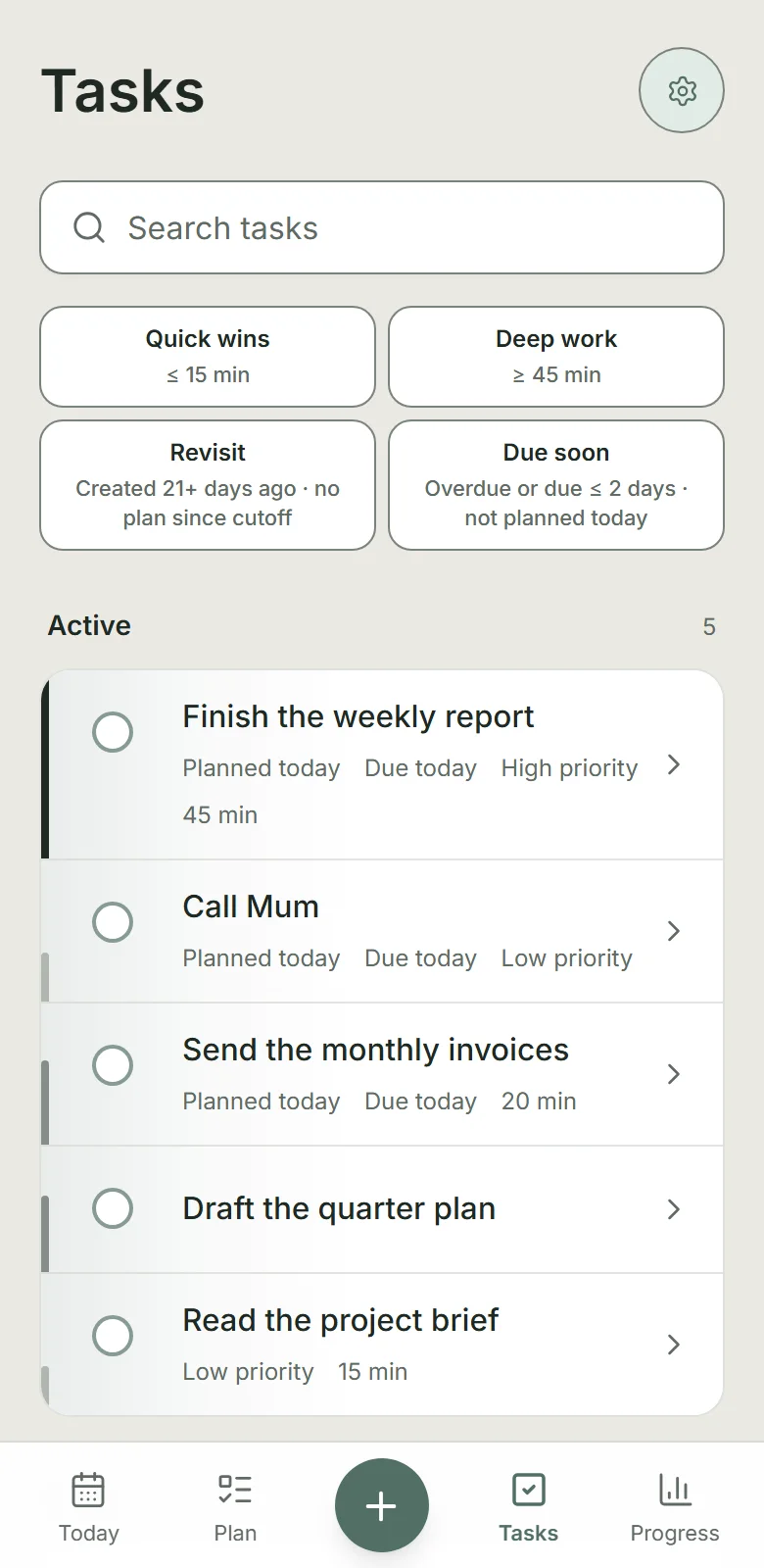
A task you add appears in its correct position straight away, whether you added it from Quick Add, the add button, the Plan screen, a saved template, or by applying a routine. Changing a task's priority or due date reorders the list the same way. You never need to leave Today and come back to see the right order.
To make a different task Up next, select it on Today to open Task actions, then choose Up next. Dayprints describes that choice as chosen by you. An eligible task chosen this way outranks the automatic rules; snoozed and completed tasks are not eligible.
To bring a task from Also planned into Your Top 3 without changing Up next, select it, choose Move to Top 3, then pick which of the three it replaces. It takes that task's place, and the task it replaces stays on today's plan under Also planned. All three places then stay as they are until you change them, so a deadline or a higher priority cannot push the replaced task back in. Undo on the confirmation puts the previous three back. Snoozed and completed tasks cannot be moved this way.
Find completed tasks
Completed work moves to Done on Tasks. The first five completed tasks stay visible. When there are more than five, select the count beside Done to show the rest; select it again to return to the five-task preview. Show more completed appears when there is older completed work to load.
Set priority as you add
The quick add on Today, and the inline add on an empty Plan day, both reveal a Low / Normal / High selector as soon as you start typing. It stays out of the way until you need it, and returns to Normal whenever you clear the field, so a one-off High never carries into the next task by accident.
Priority set this way is the same field as the one in the task editor, and it orders your day straight away.
Reuse common tasks with quick-add templates
The Templates row on Today turns a saved title and priority into an ordinary task for Today with one tap. One template can also make the task it creates Up next.
Open Settings → More settings → Quick-add templates to add, edit, delete, or pin templates. Pinned templates appear first on Today; you can pin up to five. Every account starts with three editable templates. Free can keep up to five templates, and Plus can keep up to 15.
Prioritise with restraint
Reserve High for work that protects an important commitment or prevents a real consequence. If everything is High, the label stops helping.
Free can hold 15 active tasks and 15 archived tasks; Plus raises each limit to 1,000. A completed task makes active-task room after its seven-second capacity reservation expires; the visible Undo action lasts five seconds. Archiving makes active-task room when Archive has capacity. See Plus at a limit opens Settings → Plan & billing inside Dayprints.
Repeat supports Daily and Pick days on Free; Pick days lets you choose any combination of Monday through Sunday. Plus adds intervals, monthly dates, yearly dates, and completion-relative schedules. Every occurrence remains an ordinary task with its own completion history.