Get started with Dayprints in five minutes
You do not need folders, a detailed system, or a perfect task list. Start with one small day.
What you see first
The first time you open Dayprints, a short four-screen introduction explains the daily loop: choose today's tasks, complete at least one planned task, decide what happens to anything left unfinished, and keep a framed, dated Dayprint for each day you close. The last screen takes you to the task field so you can plan your first task straight away.
You can leave it at any point with Skip tour, and nothing in the app is held back if you do. To read it again later, open Settings → More settings → Replay introduction. Replaying only shows the screens again; it changes nothing you have already done.
Find your way around
The bottom bar has four destinations and one action, in this order:
- Today shows what needs your attention now.
- Plan helps you decide what to act on and when.
- The centre + button on mobile, or Add task on a wide screen, opens the Add task sheet.
- Tasks is a searchable ledger of active and completed work, with optional task lenses.
- Progress shows your Momentum and recent completions.
On a wide screen the same destinations sit in a left sidebar instead of a bottom bar, with Add task at the top of it. Every screen therefore has somewhere to add a task, whichever size you are on.
1. Add three tasks for today
Open Today, use the + button on mobile or Add task on a wide screen, and type a clear title. Add a due date, scheduled start, estimate, priority, note, or reminder only when it will help you act.
Add three tasks:
- one task that matters;
- one task that is easy to finish; and
- one task that will make tomorrow easier.
Your account also starts with three quick-add templates on Today. Select a template chip to create that task immediately, or open its customise control to change the saved title, priority, pins, and Up next behaviour.
2. Shape your Top 3
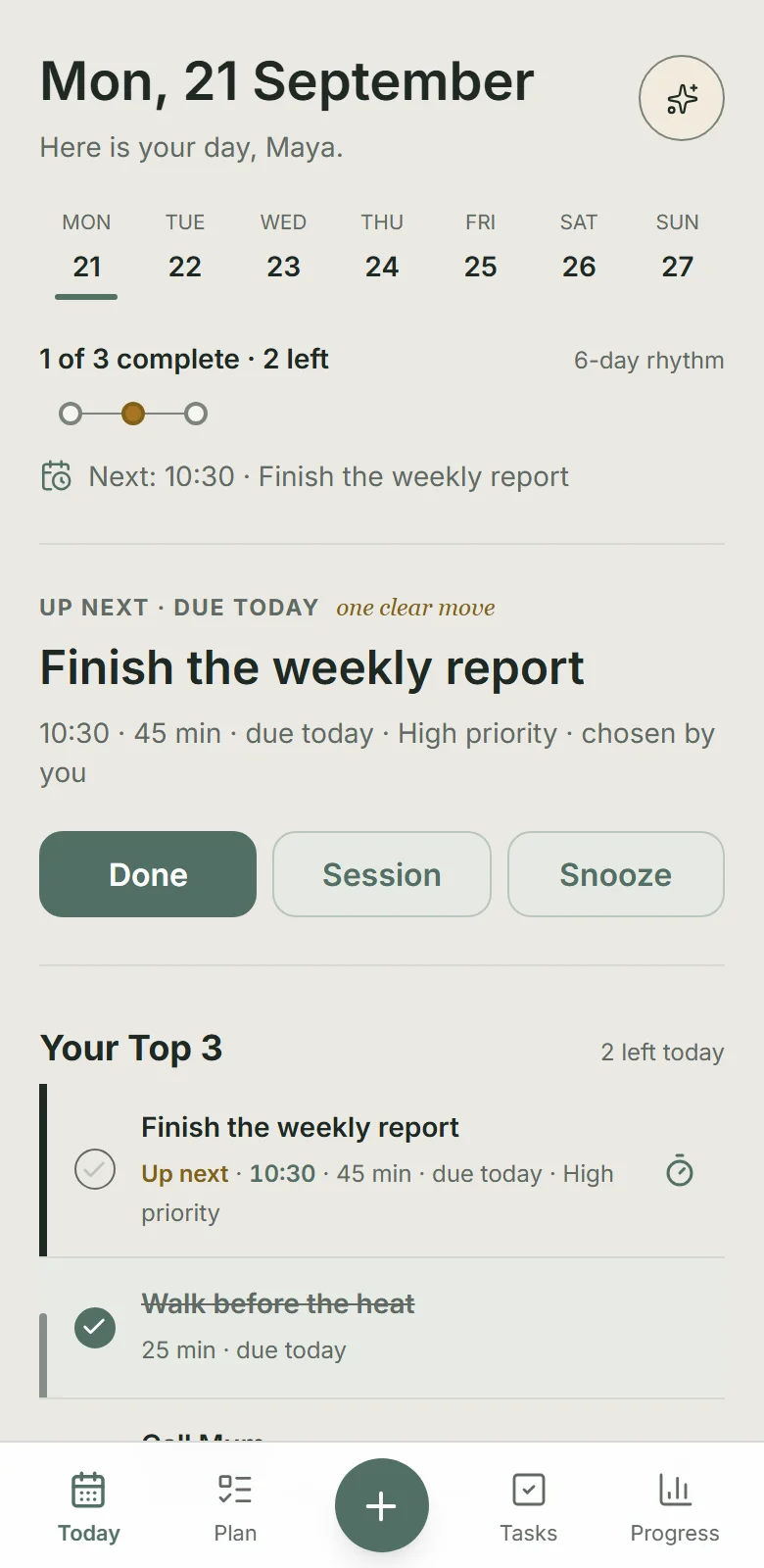
Dayprints fills Your Top 3 from your planned tasks. If you added more, select the task that deserves your first attention and choose Up next in Task actions. Due dates and priority help order the rest; remaining tasks stay under Also planned.
3. Check Up next
Up next shows one useful action from your incomplete Today tasks and explains why it was chosen. An explicit choice says chosen by you. You can complete it, or snooze it for an hour, until this evening, until tomorrow morning, or until a time you pick. A snooze inside today keeps the task in today's plan; a snooze that reaches tomorrow moves it to that day. If it does not belong today at all, choose Move to Tasks: the task leaves Today and waits in Tasks, still active, until you plan it again.
4. Complete one task
Mark one task done. Once the completion is saved, Today progress and Momentum update together. The visible Undo action remains available for five seconds.
5. Add one supporting feature
Choose one: create a small habit, set a useful reminder, or schedule a task’s start. Add the rest when you need them.
Check your time zone
Your day starts and ends in the time zone on your profile, so it decides when Today rolls over and which tasks count as due. Dayprints detects it when you sign up; confirm it in Settings → Time zone if you have moved or travel often.
If you are curious about why Today lists things in the order it does, Settings → More settings → How Today decides explains it in a few lines.
These notes are reachable from the app too: Settings → More settings → Help opens them in a new tab, so you can read one without losing your place in Dayprints.
For a feature-by-feature reference, see what Dayprints will help you do.
Return to Today when you need one answer: “What should I do next?”
Put this into practice with Dayprints. Plan what matters today and collect a dated artwork for each day you finish.
Works in your browser. Add it to your phone's home screen whenever you like and use it like an app.