What Dayprints will help you do
Dayprints is an installable, mobile-first daily-decision home without complicated setup.
You can install Dayprints before signing in. Start from Dayprints' app sign-in page in the browser you want to use. On iPhone or iPad, use Safari and follow Share, View More, then Add to Home Screen. Supported Chromium browsers offer installation from the page or browser menu. The guide is also available from Settings after you sign in.
At signup, First name is optional. If blank, Dayprints uses the part of your email before @,
or there when that part is empty. You can change it later in Settings → Account → First name
without signing out.
Signup offers an unticked, optional checkbox for occasional Dayprints updates. Your choice affects neither account creation nor the welcome email after confirmation. Later, control those optional notes through Settings → Email updates or the two-step unsubscribe link in an updates email. Password resets, sign-in confirmations, and requested task reminders remain separate account email. Manage email updates.
If you choose email updates, Dayprints can send a note when you earn your first Dayprint and another when you earn your third. These follow earned prints, not a schedule of days since signup. Each milestone email is sent at most once, with at least seven days between these emails. Turning updates off stops them without affecting password resets, account confirmations, welcome mail or requested reminders.
The signup form also links directly to Dayprints' Privacy and Terms pages, so you can read either document before creating an account.
After signup, Dayprints asks you to confirm your account by email. Once confirmation succeeds, Dayprints opens Today and sends the welcome message, so its links to Today and Settings → Email updates lead into the confirmed account rather than back to login.
If the confirmation email does not arrive, check your spam or junk folder. Then choose Send a new confirmation link on the confirmation screen.
If a signup-confirmation link fails or expires, it returns you to login. You can choose Send a new confirmation link there as well.
Try logging in first. Your address may already be confirmed. If needed, you can then request a new link.
You enter your email address on the page. Dayprints does not put it in the URL or reveal whether an account exists or still needs confirmation.
When a newer version of Dayprints is ready, an installed copy offers to refresh. If that release included a change worth describing, it also offers What's new; releases with nothing user-facing to report say nothing rather than inventing an announcement. The same notes stay available from Settings, so nothing is lost by dismissing the prompt and reading them later.
For a new account with no history, Dayprints opens with a two-step, immediately skippable explanation of the daily tools and how Momentum grows over time. It is not a tour of interface controls, and it does not return after dismissal.
If you forget your password, Forgot password on the login screen emails a reset link. Follow it and Dayprints takes you straight to choosing a new one; if the link has expired or has already been used, the login screen says so rather than simply reappearing. Where the password page itself is reached without a live reset session — or the session ends before you save — the form is replaced by That reset link has expired and a Send a new link button, so there is always a way forward from the screen you are on. Reset mail can land in a spam or junk folder, so check there before requesting another.
Dayprints never starts a trial automatically. When a Free limit blocks an action, it offers one optional, card-free, non-renewing 14-day Plus trial per account alongside free solutions. Billing shows the remaining days and, after 11 complete 24-hour periods, one dismissible reminder. Declining Plus keeps your account and work on Free. After buying Plus, Settings → Plan & billing → Manage subscription opens Stripe for payment methods, invoices, and cancellation settings. If you schedule a cancellation, Plus stays active through the paid period and Billing shows Ending with the end date. Once Stripe confirms the subscription has ended, the account returns to Free without deleting your work.
Account deletion is a separate choice in Settings → Data. After you confirm it, there is a 7-day grace period before permanent removal. You can sign back in and keep using Dayprints, then choose Cancel account deletion in the app banner before its displayed deadline. Signing in alone does not cancel deletion. After the deadline you cannot cancel it, and billing checks must clear before the account and its data are permanently removed.
Choose a day that feels possible
Begin with the empty Today view, where Quick Add and templates give you a starting point.
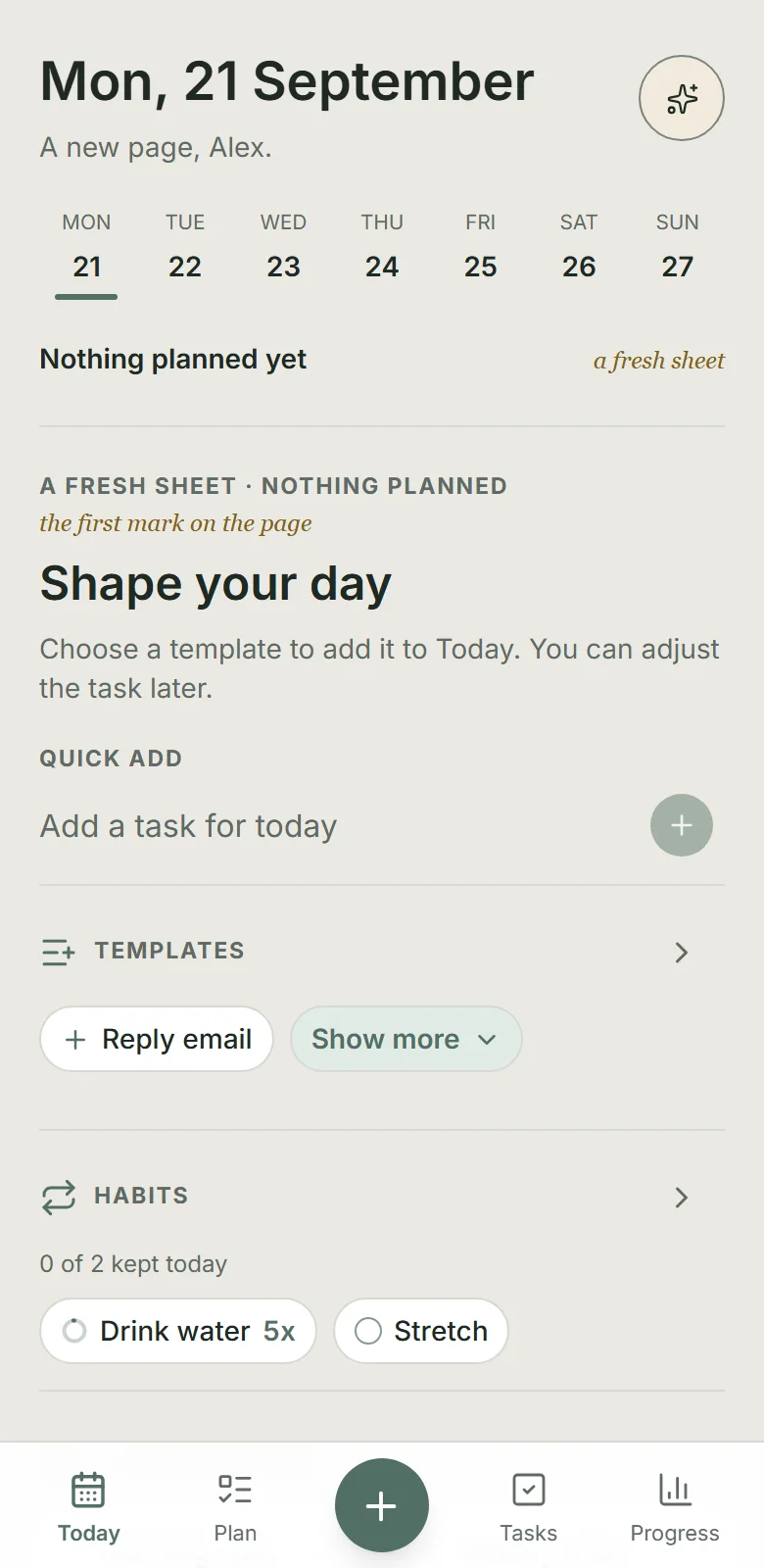
- On mobile, each main tab acknowledges a tap immediately, then briefly shows a quiet tint and underline as the next screen begins to open. Today can still take a moment because it is loading the real day, but the feedback makes clear that the first tap was received.
- Shape a focused Today around a realistic Top 3 and Up next, keeping plans, deadlines, and scheduled starts distinct for timely visibility. Those two names are used consistently throughout the app: Up next is either the task you explicitly chose or one rule-based suggestion from the plan, with Dayprints telling you why, and Your Top 3 is the first three tasks in the plan. Move to Top 3 swaps a task from Also planned into the three: you pick which one it replaces, and the replaced task stays on today's plan. Adding a task quickly starts as one line; when you focus it, Low, Normal or High appears inline—Normal if you say nothing. A task you add takes its correct place in the order immediately, however you added it, so you never have to leave Today and come back to see the right list.
- When a repeating task cannot be added because Today is already at your active-task limit, Dayprints says so rather than failing quietly: the task is waiting for room, and before midnight you can make room then choose Check again to add it.
- Free offers daily repeats or repeats on days of the week you pick, and up to three saved routines; Plus adds interval, monthly, yearly, and completion-relative repeats plus up to 25 saved routines.
- A yearly repeat is named by its date—"Every 14 March"—so a birthday or an anniversary stays on the day it belongs to instead of drifting. One set for 29 February falls on 28 February in ordinary years and returns to the 29th in a leap year, once each year either way.
- Saved routines stay on Today whether the day is empty or already full. Each routine chip shows how many tasks it will add and previews them before you apply.
- Tasks has four Free, app-curated lenses: Quick wins, Deep work, Revisit, and Due soon. These fixed views of existing tasks are not custom filters or saved queries.
- On Tasks, Done shows up to five completions so finished work stays visible without burying what is still active. The count in its heading expands the completions available there and collapses them again.
- Plus Planning Intelligence proposes deterministic, reasoned changes for approval; it never silently rearranges the day.
Follow through with less noise
- Keep a few habits beside Today, managed in Settings where archived ones stay restorable, and use task-linked Sessions from 1 minute up to 4 hours, with 25 minutes as the default; Plus adds saved presets and richer Sessions insights. Saved preset buttons show their full name and duration. To save one, set the length in Custom first: the Save button names that length once it is valid, and stays inactive until then, so a preset can never keep a duration you did not choose. Tapping 25m, 60m or a saved preset starts the session straight away; only a typed custom length waits for Start session, because the number is not finished until you are.
- Each task supports one active reminder. Notification settings offer in-app, account email, and best-effort Web Push. If delivery still does not go through after its retries, the reminder stays visible there: choose Retry for around one minute from now or Dismiss it. Push supports two devices on Free or five on Plus; iPhone/iPad requires iOS/iPadOS 16.4+ and Home Screen installation.
- A Session can chime at its planned end. It is off by default and sounds only while the app is open; when you are away, Push already covers it. One Allow sounds switch in Settings mutes every app sound. Play sample lets you hear the chime before turning it on.
- When Today shows a reminder, tapping it opens the task that reminder belongs to. Where several are due at once and no single task is meant, it opens the list of active reminders instead of guessing.
Close the day cleanly
Every task completion offers five seconds to undo, including the one that finishes the day. The Dayprint reveal opens immediately, showing its frame and paper while the undo window is still open. Undo is available inside the reveal and closes it without earning a Dayprint. Confirmation starts when the window closes, and the gathering animation continues until the artwork arrives. If confirmation fails, the reveal closes and Today explains the problem. Longer artwork waits can be closed, with the piece available in Progress when ready.
When your Dayprint appears at the end of a completed day, tap its framed painting to fill the screen with the artwork alone. Favourite or share it there, then close the enlarged view to return to the celebration.
- Complete work with calm feedback. In the end-of-day review, choose tomorrow’s top priority first, then sort the remaining unfinished tasks into Tomorrow, Later, or Archive. The chosen priority is already set for tomorrow. For a separate item in Needs attention, choose Tomorrow, Pick date, or Archive. Archived tasks remain restorable from Tasks and do not return to Today automatically.
- Free holds 15 active tasks and 15 archived ones; Plus raises both to 1,000. At that limit Today offers a way to see Plus. The archive is capped because it is otherwise the place unfinished work goes to be forgotten. When it is full you can delete from it, or restore a task when Tasks has room — deleting any task, active or archived, frees a place and removes it from your account export, and deleting one occurrence of a repeat leaves the repeat running unless you choose Delete this and all future repeats; you can also end a series with Stop repeating in the task's Repeat section. A completed task stops counting toward either cap when its seven-second server reservation expires; the visible undo window lasts five seconds for every task completion.
- After time away, use three Free choices: clear the previous plan, choose one task, or keep Today as it is. Older work remains in Tasks; overdue deadlines remain reviewable in Plan.
- Plan also looks forward, a week at a time, up to 90 days ahead, with one tap back to today. A future day is there to be read rather than rearranged, so it shows what is already planned without letting you act on it yet, and lists separately any deadline that falls on it—a deadline says when a promise comes due, which is not the same as when you meant to do the work. The line under each date in the week strip marks the highest priority waiting there, counting deadlines as well as planned work, so a day with only a deadline on it never looks empty. Repeats on a fixed calendar—weekday, interval, and monthly—appear on the days they will fall, without creating tasks in advance. Repeats that depend on when you finish the previous one are left out, because their next date is not knowable until you do. Tapping any task in Plan opens it, on a future day as readily as on today—reading a task is not rearranging a day. A projected repeat is the exception: it is a forecast rather than a task that exists yet, so there is nothing to open.
- Choose when your planning day ends in Settings → Planning day ends, including times such as 21:30. Plan's capacity and suggested placements use your chosen stopping time; your calendar day still ends at midnight.
- Moving everything unfinished to tomorrow can be undone for a few seconds afterwards, and each task returns to the exact day it came from. If part of the move does not go through, Dayprints says how many moved and how many did not rather than reporting a success it cannot vouch for.
- Choose tomorrow's top priority in the end-of-day review. It becomes tomorrow's first Up next task and leads Your Top 3.
- Add an optional short reflection.
See progress without pressure
- Complete work to build Momentum, see each task's addition, and follow your tier on Progress.
- Review rolling seven-day task-completion bars, habit consistency, Rhythm length, and one rule-based gentle suggestion. Dayprints does not yet provide a dedicated Weekly Review workflow.
- Re-read your nightly reflections in a Reflection journal at the foot of Progress. Notes are gathered by the question that prompted them—Grateful, Self-appreciation, and This year—newest first, and you can filter to one. Free shows the most recent 90 days; Plus shows the full saved history. A prompt you never answered is left out, and a long note is shortened until Read all.
- In the This year thread, an unchanged yearly statement stays as one entry with the span of dates you restated it; rewording it begins a new entry, so the change is what stands out.
- Download a structured JSON or CSV account export on either plan. Its 39 datasets include saved routines and quick-add templates; the export guide explains the exact scope and exclusions.
- Choose ten complete app palettes, including two dark options and a system-aware setting. Appearance and accessibility require neither payment nor a Momentum tier.
- New accounts start at Seed, with soft, single-colour Dayprints. Bloom is next at 250 Momentum, bringing a richer colour palette as you complete work. Momentum keeps accruing through Seed (0), Bloom (250), Current (1,000), Radiance (3,000), and Masterwork (10,000). Reached tiers never move backwards, and Momentum continues beyond the final threshold.
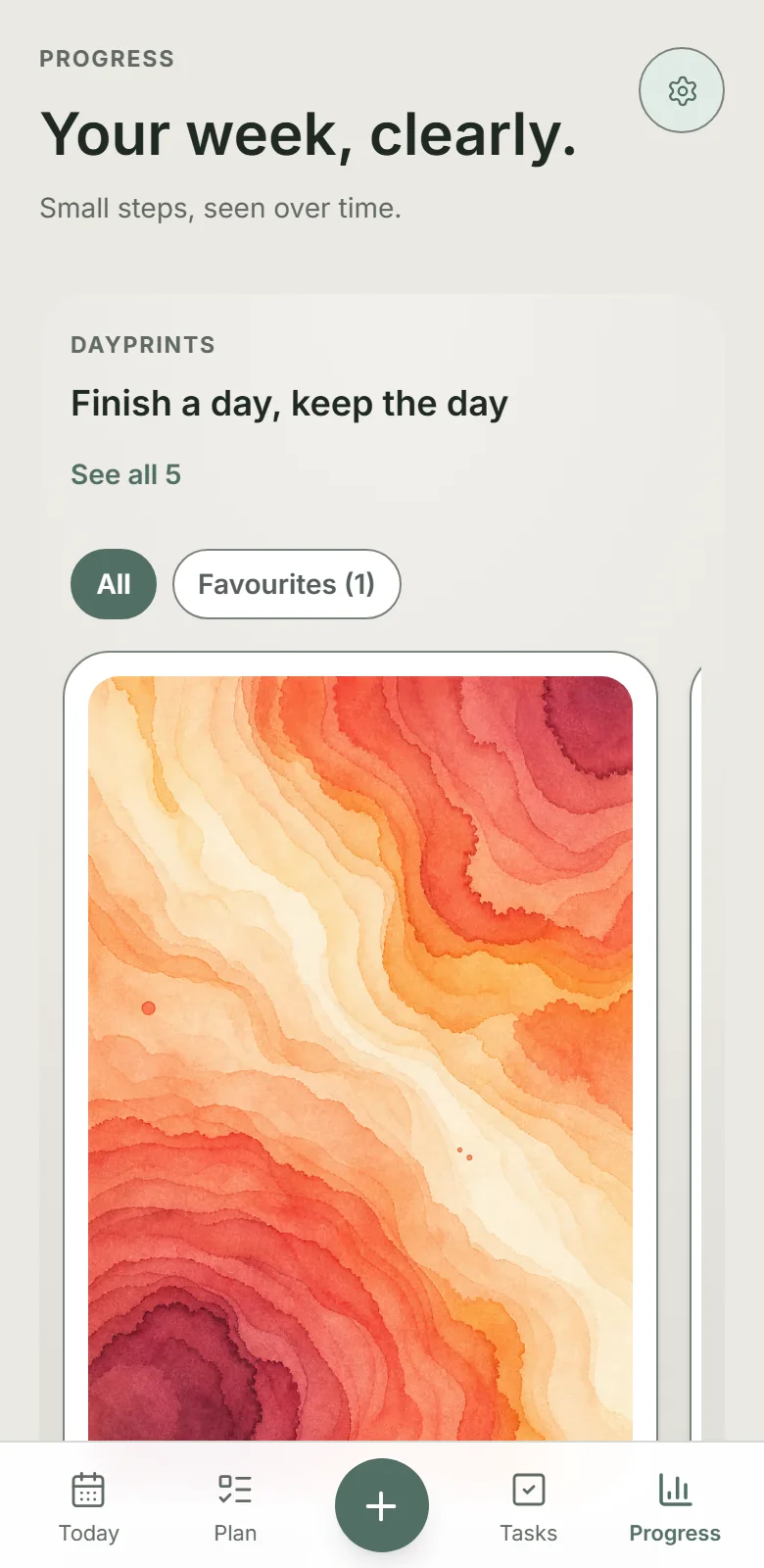
- A day earns a Dayprint when you complete one task you had planned, for any date, leave nothing in today's plan undecided, and leave nothing waiting in Needs attention; Tomorrow, Later and Archive decide a task as surely as finishing it. Progress shows the latest thirty artworks newest first on a lit wall; tap one and it fills the screen with the painting alone, its date and tier beneath, rare pieces marked, and palette, name and serial behind the information button. Arrows, swipes and the left and right keys move between pieces. A heart keeps a piece, and All / Favourites above the wall switches between every Dayprint on the shelf and the ones you kept. Share, beside the heart, sends the framed artwork with the date it was earned and a small dayprints.app mark drawn on it, alongside a short line of text inviting whoever sees it to plan a day of their own — through the share sheet where the device supports it, as a download otherwise. See all N opens the full gallery grouped by month, newest first, with a month jump control and All / Favourites across the collection. The viewer continues between pages, and Free and Plus have the same gallery and the same sharing. Each keeps its frame for good. Learn about Dayprints.
Share a thought after a Dayprint
After you receive a Dayprint at a higher tier than your previous one, or reach a completed-day streak milestone, you may see What changed since you started? Choose Share a thought to respond in the app or comment on the artwork you just received. Either response is optional.
Feedback is stored privately. Permission to quote it publicly is a separate, unchecked choice, with first-name or first-name-and-last-initial credit. Nothing is automatically published, and this permission does not cover sharing your Dayprint. You can dismiss the invitation; each kind of moment is asked about at most once, with no more than two invitations over your account's lifetime. Your feedback and consent record are included in your account export.