Understand Momentum, tiers, and Dayprints
Momentum is Dayprints' long-term collection of progress from eligible completed actions. It is visible on Progress, and completing a task briefly shows the amount added beside that completion.
A new account with no history first sees a two-step explanation of the daily tools and this long arc. It can be skipped immediately, does not teach interface controls, and stays dismissed across devices.
How Momentum is earned
- normal task: 3 Momentum
- priority task: 5 Momentum
- habit: 2 Momentum
- qualifying completed Today plan: 8 Momentum
- meaningful end-of-day review: 3 Momentum
Up to 50 Momentum can be earned per local day. Creating or editing tasks earns nothing. Undo reverses the applicable award; rest days do not reduce Momentum. Finishing a task within two minutes of adding it earns Momentum the first time, but a second such completion in that same two-minute window does not; when that happens the Undo message says so, so the difference is never silent.
How tiers work
New accounts begin at Seed, with soft, single-colour paintings. Bloom is the next tier, at 250 Momentum, and brings a richer colour palette. The time it takes depends on the work you complete; there is no fixed number of days to unlock it. Your Seed Dayprints stay in your collection as you progress.
Progress shows your current tier and the path toward the next one: Seed at 0, Bloom at 250, Current at 1,000, Radiance at 3,000, and Masterwork at 10,000 Momentum. The tier shown is the highest one you have reached, so it never moves backwards after an undo or a quieter period.
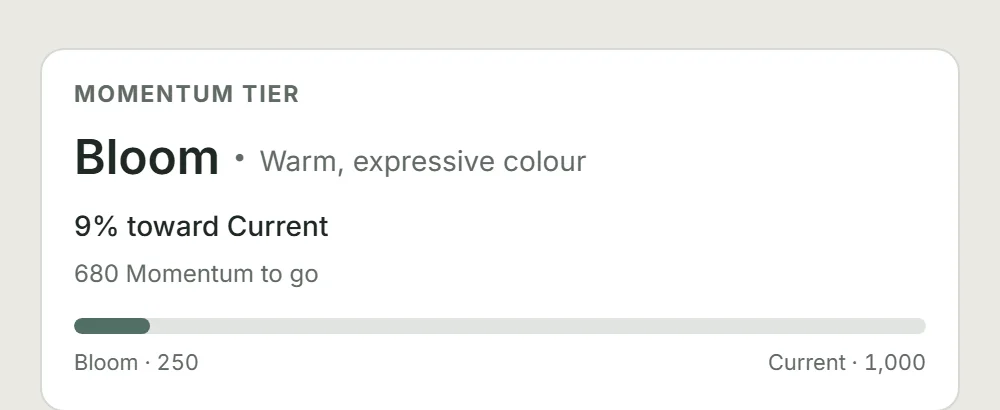
Momentum does not reset each week and continues accruing after Masterwork. The thresholds describe a long-term record, not a weekly target.
Crossing into a new tier is marked once in the day-complete sequence. Before the Dayprint appears, a held screen names the crossing — the tier you left and the tier you reached. For Seed through Radiance, it also says a new family of artwork and a matching frame come with it; crossing into Masterwork instead awards your first Masterpiece Series edition, since Masterwork has no daily family of its own (see "Which family your Dayprint comes from" below). It waits for you rather than timing out, and Continue, Escape, Back and the header arrow all move on to the Dayprint, so the print cannot be lost by missing the beat. It fires once per crossing and never again, including when you reopen that Dayprint from Progress. Masterwork is the final tier, so Progress marks the milestone without showing another target. With reduced motion, the Momentum change and tier information remain visible without relying on animation.
Which family your Dayprint comes from
Reaching a tier does not mean every finished day at that tier draws its own family of artwork. The crossing screen above marks one moment; this is what an ordinary day looks like afterwards.
- Seed and Bloom always draw their own family. Every finished day, no exceptions.
- Current currently draws its own family every finished day too.
- Radiance draws its own family about one day in five. The rest of the time it draws Current, and Radiance prints are never more than eight finished days apart.
- Masterwork has no daily family of its own. An ordinary finished day draws Current about three days in four and Radiance about one day in four, and Radiance prints are never more than twelve finished days apart. What actually marks Masterwork is the Masterpiece Series: your first edition is awarded the day you are promoted — a different kind of keepsake from the daily print. Further editions follow as you keep finishing days.
Current, Radiance and Masterwork artwork is not published yet. Until a tier's own family is, a day that would draw it draws Bloom instead, never Seed.
These are today's settings. If Dayprints ever changes them, this page will say so.
How Rhythm differs
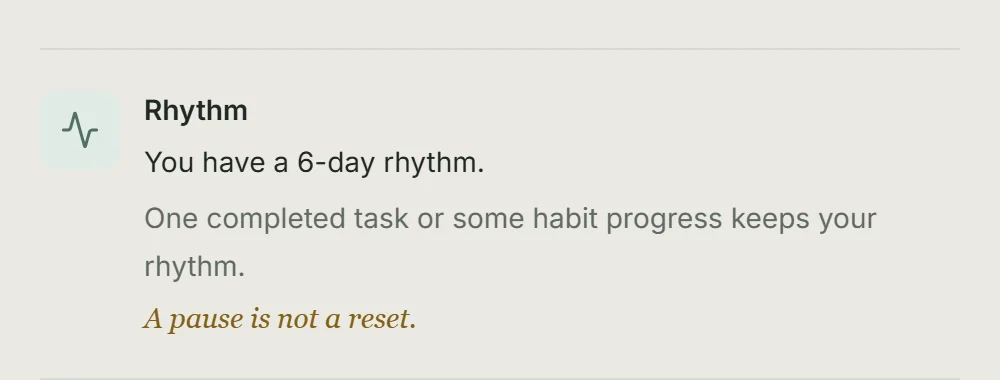
Rhythm marks days with a completed task or some habit progress. A pause does not reduce your Momentum or move your tier backwards.
How Dayprints relate
A Dayprint record is created when you complete at least one task you had planned — for any date, not only today — leave nothing unfinished in today's plan, and leave no unresolved item in Needs attention. Work you planned for a later date and finished early counts, so planning ahead is never penalised. A task you never planned at all does not count: the record marks a day you decided about, not simply a day you were busy. Habits enrich the day summary but never block it. Each record keeps the tier held when the day was completed.
Once those conditions are met the day closes on its own — there is no button to press, and the Dayprint appears shortly afterwards. Until they are met, the End-of-day review row on Today names what is still outstanding — and names every way to clear it. Finishing an outstanding task is one route; so is choosing Tomorrow, Later or Archive for it in the End-of-day review. A day you did not finish exactly as planned still earns its Dayprint once nothing is left undecided.
One day, one chance: a Dayprint cannot be earned late. A day that closed without one stays without one, which is why the record marks the occasion rather than the picture. Progress carries the same summary under Dayprints, where How do I get one? repeats these conditions.
A Dayprint is a quiet record of a day you finished. You can choose one of your Dayprints as your profile picture without changing the record or its artwork.
Every task completion has a five-second undo window, including the one that finishes the day. The Dayprint reveal opens straight away, with its frame and ivory paper visible during that window. You can undo the completion from inside the reveal; doing so closes it and returns the task to unfinished work without earning a Dayprint. Confirmation starts when the window closes. If confirmation fails, the reveal closes and Today explains the problem.
Gathering dots and a soft light keep moving while the artwork is on its way. The explanation stays centred inside the frame, with any longer-wait guidance beneath it. The artwork replaces this forming view when it is ready after confirmation. When artwork takes longer to arrive after confirmation, you can close the view and find the Dayprint in Progress once it is ready. Stillness and your device's reduced-motion preference keep the frame, paper and explanation visible without movement.
Tester accounts can replay the reveal from Settings using their most recent Dayprint, once its artwork is available. The preview holds the forming view long enough to inspect it, then shows the existing piece and its frame. Tap the painting to maximize it, favourite the saved piece or share it; closing the viewer returns to the replay. It changes no progress and leaves that day's real reveal available. Settings explains when there is no piece ready to replay.
When the completed day's painting appears, tap the framed artwork to see the painting itself fill the screen without its frame. You can favourite or share it from there. Closing the enlarged painting returns to the same reveal, with its details still in place; the Escape key also returns there. With only one piece open, there is no navigation counter or pair of arrows.
Open Progress to find the latest thirty available Dayprint artworks in a horizontally scrollable shelf, with the newest first. Tap a piece and it fills the screen, showing the painting on its own — the shelf shows each Dayprint in its frame, and the viewer sets the frame aside so nothing sits between you and the picture. The date and tier sit beneath it, and arrows, swipes or the left and right keys move through the shelf without closing the viewer. Close it with the cross, the Escape key, a swipe down, or a tap on the surrounding ground.
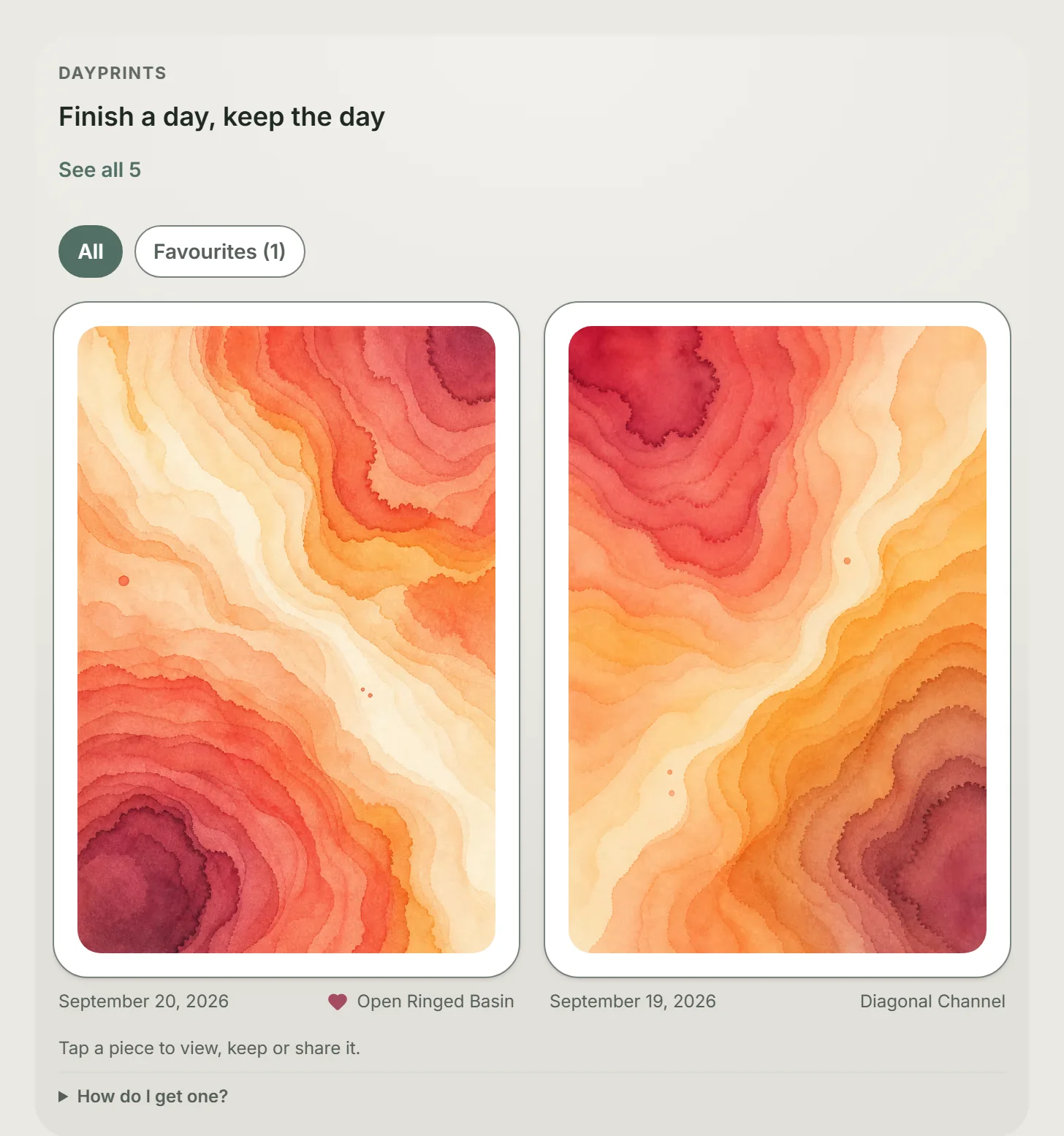
See all N, beside the shelf heading or at the end of the strip, opens Your Dayprints, the full collection grouped by month, newest first. Jump to month takes you straight to a month or your Oldest Dayprint; empty months are shown but unavailable. Load earlier months brings in older pieces, and the viewer continues between pages. All / Favourites filters the whole collection here. Free and Plus have the same gallery.
The information button opens the rest: palette, name where the piece has one, and serial. The tier's own description — "Bloom · Warm, expressive colour" — is not repeated under each piece, since every print of a tier shares it. It sits beside the tier on the Momentum tier card on Progress, where the tier is introduced, and on the reveal when a new tier first arrives.
The heart beside it keeps a piece. Press it to add the Dayprint to your favourites and again to remove it; the heart fills while a piece is kept, and a small heart appears next to that date on the shelf. Above the shelf, All and Favourites switch what the wall shows, and the number beside Favourites counts the kept pieces among the thirty on the shelf. Favourites stays newest first, like the wall itself — keeping a piece never moves it to the front. Your favourites stay private, and your account export records which Dayprints you kept. Before you have kept anything, the Favourites view says so in a line.
Share sits beside the heart. It sends the artwork inside its frame, with the date it was earned and a small dayprints.app mark centred on the mount below the picture. Where your device can share a file the share sheet opens, so you can send it wherever you like; everywhere else the image downloads instead. A short line of text travels with the image, inviting whoever sees it to plan a day of their own. Part of that line is emphasised, which most messaging apps show as bold; somewhere that does not format text at all — a plain email or a note to yourself — the marks around it show up as asterisks instead. Nothing else leaves your account — not your plan, your tasks, or the rest of your collection. The date and the mark are drawn on the image itself rather than written beside it, so they stay with the picture wherever it is saved or passed on.
The five palettes are Dusty rose, Lavender, Mineral teal, Muted ochre, and Sage. Rare pieces are marked Rare Dayprint in the viewer, beside the date, and the opened piece carries a thin gold edge that the other tiers do not.
Not every piece has a palette. A rare piece is a distinct named painting in the shared catalogue rather than a palette version of a standard pattern. More than one account may receive the same piece. A rare Seed piece may arrive as Pigment Rain, and its details show that name where a standard piece shows its palette. Every rare in the collection now has a name, including the two earliest pieces, Crossing Currents and Twilight Confluence.
Your first five standard Seed Dayprints work through all five palettes before a colour comes round again or a rare piece becomes possible. The selection uses your own history and account-specific seed rather than assigning one picture to each calendar date, so two people completing the same date can receive different pieces.
Each palette holds more than fifty distinct paintings, so a colour coming round again does not mean the same picture coming round again. A Dayprint you have already been given is not given to you a second time while unseen ones remain. That holds for days close together as well: your next couple of days are prepared a little ahead of time, and each one sets its own picture aside while it waits, so two days running cannot be given the same painting.
How Dayprints are framed
Every Dayprint is given a frame at the moment it is made, and keeps that frame permanently. A Dayprint you completed months ago will not change frames because newer ones are available, in the same way its artwork never changes.
Which frames you can be given depends on the tier you held when the day was completed. Seed days draw from a set of fifteen wood, paint and metal finishes.
You will be given every frame in that set before any of them comes round again. Framing draws from the ones you have seen least, so a repeat means you have already collected the rest of the tier rather than the app having run short.
Every Seed frame carries a plain ivory mat with a softly cut inner edge, so the picture sits inside a mount rather than running straight into the moulding.
The shelf hangs your Dayprints on a softly lit wall so they read as objects rather than thumbnails, and the viewer drops everything around the painting into near-darkness for the same reason. Nothing here is a setting: framing is part of the record, not something to configure, and it costs nothing.
Use a Dayprint as your profile picture
Open Settings and select Profile picture, then choose from up to 30 recent Dayprints whose artwork is available. You can also select the round profile picture on Today to open Settings, where the chooser lives.
The chosen artwork appears in the round profile picture and in the Profile picture row in Settings. To clear it, open the chooser again and select No profile picture. This changes the account picture without changing the Dayprint itself.
You can also open a Dayprint on Progress, press the information button, and choose Use as profile picture there. When that piece is already selected, the same place offers Remove profile picture.
Momentum, tiers, stored all-time Progress history, and account export are currently included on Free.
Put this into practice with Dayprints. Plan what matters today and collect a dated artwork for each day you finish.
Works in your browser. Add it to your phone's home screen whenever you like and use it like an app.