Repeat tasks and use saved routines
Use Repeat for task-sized work that should create a fresh occurrence. To make a task repeat, expand Repeat in the task and tap how often, such as Daily; the start date, end date and other settings appear once you pick one. Free supports Daily and Pick days, where you choose any days of the week, Saturday and Sunday included. Plus adds Monthly, Yearly, Interval (every few days, counted from the start date, even if you finish late), and After completion (a set number of days after you finish the current one, such as seven days after the previous occurrence is finished). For monthly and yearly repeats, a date that does not exist in a shorter month uses that month's last day.
On Free, See Plus under the repeat choices opens Settings → Plan & billing inside Dayprints.
Dayprints keeps these choices visual and explicit; the Dayprints vs Todoist comparison explains how that differs from broader natural-language recurrence and project tools.
Fixed recurrence follows the calendar. Completion-relative recurrence advances only after the current occurrence is completed; undoing that completion rewinds the advance only when no later occurrence has been stored. Each occurrence remains an ordinary task with its own date, completion, history, Momentum, and place in the daily plan.
What each new occurrence carries
A new occurrence keeps the title, notes, priority, estimate, scheduled time, and reminder captured when you create the repeat. Its wall-clock time stays fixed across daylight-saving changes in the repeat's saved timezone. If an occurrence is added after its reminder time has already passed, that reminder is skipped rather than sent late.
Repeats appear only on the day they fall, when you open Dayprints that day. If you don't open Dayprints for a few days, you won't come back to a pile of missed copies, just today's.
Changing or archiving a repeat
Changing how a task repeats (its pattern, days, start or end date) applies to the whole repeat. If you change a repeating task's title, notes, priority, or estimate, Save asks whether it applies to Just this task or This and future repeats; the second also updates future occurrences already added. Time and reminder changes stay on the task you are editing; those two values are captured for the repeat only when you first set it up.
For a completion-relative repeat, completing its current occurrence advances the repeat. Undo rewinds that advance only when no later occurrence has been stored, and editing an older occurrence cannot move the repeat behind a later one.
Archiving an occurrence means "not this one", not "never again", and cancels that occurrence's reminder. A fixed-calendar repeat continues on its later scheduled dates. A completion-relative repeat advances when its current occurrence is archived; that archived occurrence can be restored only before the repeat moves past it.
To end a series, open any of its occurrences, expand Repeat, tap Stop repeating, and save. That ends the whole series, and no new occurrences are added after that. Occurrences that already exist, including the one you edited, stay as ordinary tasks until you complete, archive, or delete them. Deleting an occurrence asks what you mean while its series is still running: Delete just this one removes that occurrence and the series continues, and Delete this and all future repeats removes it and ends the series in the same step. If you set an end date and change your mind, tap Remove end date under Ends on. A task that no longer repeats stops being labelled Repeats.
A saved routine is different from recurrence. It is a reusable ordered set of task templates that you apply manually—for example, a shutdown sequence or study setup. Applying a routine creates ordinary tasks for the selected day and respects the normal active-task limit. On Saved routines, choose Today or any day up to two years ahead. Past days are not offered because Dayprints does not add tasks to a day that has already happened. Tasks created for a future day count toward your active-task limit immediately because they are real tasks as soon as they are created.
After you apply a routine, you can undo that application for the rest of that local day, until midnight in the timezone where you applied it. The undo window ends with the day you applied the routine, not the day you applied it to. Undo removes only the tasks it created that are still untouched. It keeps any task you have since completed, edited, archived, rescheduled, snoozed, used in a Session, or attached a reminder to, and tells you how many were kept. A repeated tap on the same application does not create duplicates. If you choose to apply the routine again, it creates another set as expected.
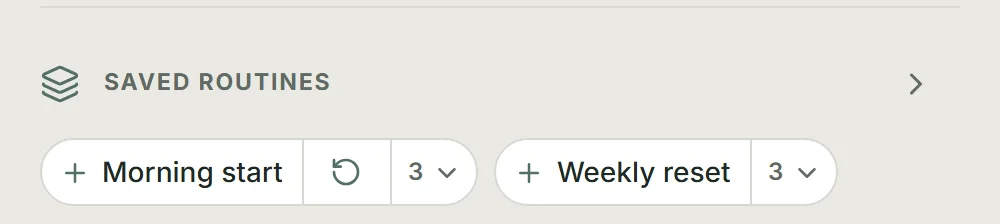
Every account starts with two saved routines: Morning start and Weekly reset. You can edit, reorder, apply, or replace them like any other saved routine, and the third Free slot is left open for one of your own.
On Today, saved routines stay below Your Top 3. With 0–2 planned tasks, routine chips are visible; with 3 or more, the section collapses to a single line that still opens saved routines. The routine chips there are unchanged: one tap adds the routine to Today. Its position does not change — only the chips expand or collapse.
Free can keep up to three routines. Plus can keep up to 25. Any saved routine can be reordered or revised before its next application. A routine limit's See Plus action opens Settings → Plan & billing inside Dayprints.
Use a habit when continuity matters, a recurring task when every occurrence needs its own completion record, and a routine when you want to choose when a familiar group of tasks is added.